
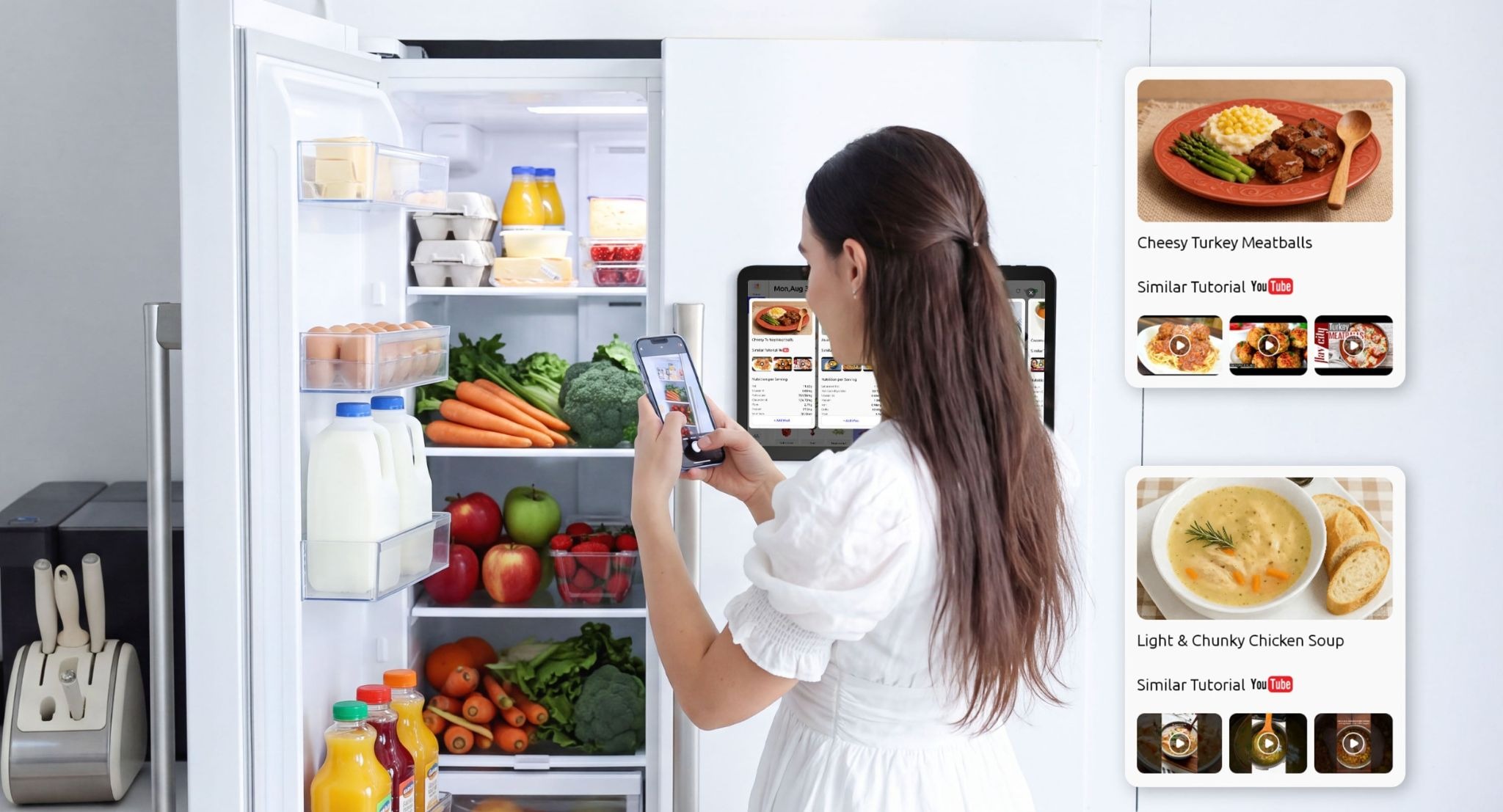
A home dashboard can start as a fun tech project: a spare monitor, a few widgets, and live information pulled onto one screen. The trouble begins when the screen is expected to do everything. Game-server status, weather, grocery lists, family appointments, and smart-home controls may all be useful, but not necessarily to the same person or in the same room.
The better approach is to choose the job first, then choose the screen. A dashboard should answer a question people already have, where they’re most likely to ask it.
Start With the Task, Not the Device
Before mounting a display or installing dashboard software, list the information someone needs at a glance. A gamer might want server status and the next scheduled session. Someone working from home may need the weather, calendar, and delivery alerts. A busy household may care more about pickups, chores, and what’s missing from the shopping list.
Separate glanceable information from things that require interaction:
- Glanceable: today’s schedule, weather, a timer, or a status indicator.
- Interactive: editing an event, checking off a task, adding groceries, or changing a device setting.
A TV across the room may be great for status information but awkward for entering a shopping item. A touchscreen near the kitchen may be better for quick updates, but unnecessary if everyone already checks a phone. The goal isn’t to put every app on a bigger screen; it’s to remove one small point of friction.
Match the Screen to the Room
Gaming Room or Home Office
A spare monitor or TV makes sense when the information is mostly for one person. Keep it focused on a few things that change often: a calendar strip, system or server status, weather, or a project timer. If nobody checks a panel after the novelty wears off, remove it. More widgets don’t make a dashboard more useful.
Kitchen
The kitchen is a different kind of environment. People pass through it repeatedly, and the information is usually shared: who’s collecting a child, what’s for dinner, which chores are due, and what needs to go on the next grocery run.
A digital fridge calendar is one option for putting that information in a common place. Everblog’s 13.4-inch FridgeCal combines a magnetic, rechargeable touchscreen with shared calendar and chore features, alongside shopping-list and food-management tools. That makes it a more targeted fit for household coordination than a general-purpose display intended mainly for media or smart-home controls.
Before choosing one, check the available refrigerator or wall space, mounting method, charging routine, calendar compatibility, and how easily the people in your home can read and update it. A dedicated screen only helps if it fits the way the household already moves.
Entryway or Shared Living Space
An entryway display can be useful for weather, departure reminders, or a short checklist. A shared living-room screen can work for a household schedule, but it may also be visible to guests. In either location, show only the information people need there. A full personal calendar with private appointment details is rarely necessary on a screen everyone can see.
Compare the Main Display Options
| Display | Works best for | Main trade-off |
| Spare TV or monitor | Large, glanceable information in a gaming room or office | Can be awkward for touch input and may use more space or power than needed |
| Repurposed tablet | Flexible dashboards and touch-based updates | Requires a secure mount, charging plan, and software that stays supported |
| Dedicated fridge or household display | Shared schedules, chores, and shopping information in a high-traffic area | Costs more than reusing hardware and may have specific compatibility limits |
| Paper or dry-erase board | Simple plans that rarely change | Updates must be copied manually, and remote family members may not see changes |
There’s no universal winner. Reuse a screen if you already own suitable hardware and enjoy maintaining it. Consider a dedicated display if the same household information needs to be visible every day and manual updates have become the problem. Keep the paper board if it’s already doing the job.
Design It for a Glance, Not a Demo
A dashboard should be readable while someone is walking past, not only when they stand still and study it. Start with three information areas at most. For example, a kitchen screen might show the next family commitments, today’s chores, and the shopping list. A gaming-room screen might show a session schedule, server status, and weather.
Use clear labels and readable text. Put the most time-sensitive information where it is easiest to notice. Avoid rotating slides if someone needs to read several details quickly, and don’t let decorative widgets push important information off the screen.
Review the layout after a week. If a panel has not helped anyone make a decision, remove it. The point is not to create an impressive screenshot; it’s to make the next action obvious.
Treat Privacy and Maintenance as Part of the Setup
A shared screen is visible by design, so decide what should never appear on it. Avoid displaying passwords, access codes, sensitive medical details, or private work information. If you share a calendar, check who can see event details and who can edit events. Google’s calendar-sharing guidance explains the available permission levels.
Maintenance matters too. Confirm that the display can access the data sources you want, that calendar changes appear as expected, and that someone knows how to fix a disconnected account. For a battery-powered screen, decide where and when it will be charged. For a TV or monitor, check its power and screen-saver settings before leaving it on for long periods.
The fewer manual fixes a setup requires, the more likely people are to keep using it. A modest dashboard that updates reliably is more useful than an elaborate one that becomes another household chore.
Try It for a Week Before Adding More Tech
Use this simple test before buying new hardware:
- Write down the three questions people ask most often in that room.
- Put only the information needed to answer those questions on the screen.
- Make sure the right people can update the source calendar or list.
- Check whether the information is still useful after seven days.
- Remove anything nobody uses, then decide whether a different screen or a new feature is actually necessary.
A home dashboard doesn’t need to control the entire house. It needs to make a few useful things easier to see and act on. Start with the room, the people who use it, and the decisions they make there. The hardware comes second.